

Introduction
Maintaining a smooth and reliable email communication experience is vital in today’s digital world. However, occasional connectivity and configuration issues can disrupt your email workflow, causing frustration and hindering productivity.
This guide provides detailed troubleshooting steps to help you diagnose and resolve common email-related problems. From checking your internet connection to exploring advanced configuration settings, we will cover a range of comprehensive solutions to ensure uninterrupted email access.
Are you connected to the internet?
Before diving into complex troubleshooting steps, start with the basics. Verify that you have an active internet connection. Check your Wi-Fi or Ethernet connection and ensure that you are properly connected to the internet.
If you’re experiencing connectivity issues, troubleshoot your network connection or contact your internet service provider for assistance.
Anything in the junk folder?
Sometimes, legitimate emails may mistakenly land in your email provider’s junk or spam folder. Navigate to these folders and thoroughly review their contents. Look for emails that should be in your inbox and mark them as “Not Spam” or move them to the appropriate folder. Adjust your spam filters if necessary to prevent future misclassification of legitimate emails.
Is it in trash?
Accidental deletion or automatic movement of emails to the trash folder can lead to missing or inaccessible messages. Check your trash or deleted items folder and restore any important emails that were mistakenly deleted. If necessary, adjust your email settings to prevent automatic deletion or set up a retention policy to recover deleted emails.
Check all mail
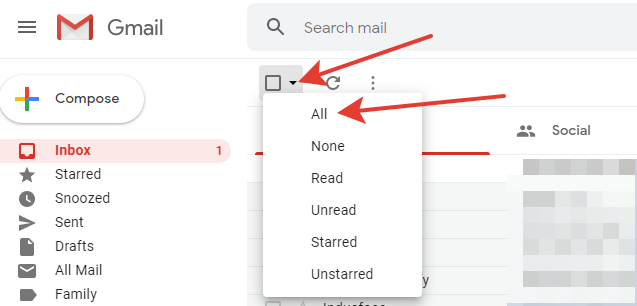
In addition to the inbox, emails may be filtered and placed in various folders based on specific criteria. Review all your email folders, including custom folders you may have created, to ensure you haven’t overlooked any important messages. Take note of any unusual or unexpected email sorting behavior and adjust your email client’s rules or filters if needed.
How’s your storage limit?
Exceeding your email storage limit can cause issues with sending or receiving messages. Check your email service provider’s storage settings and monitor your mailbox usage.
Delete unnecessary emails, particularly large attachments or outdated messages, and consider archiving older emails to free up space. Regularly managing your mailbox will help ensure smooth email operations.
Go over your filter settings
Email filters can automatically route emails to specific folders based on pre-defined criteria. Review your filter settings and make sure they are properly configured.
Adjust the criteria or create new filters if necessary to ensure that emails are being sorted correctly. Regularly review and update your filters to accommodate any changes in your email communication needs.
Check email forwarding
If you have set up email forwarding to another account, verify that it is configured correctly. Double-check the forwarding settings to ensure emails are being redirected to the intended destination. Test the forwarding functionality by sending test emails to ensure they are being properly forwarded without any delays or issues.
Is the email service provider experiencing issues?
Sometimes, email service providers may encounter temporary service disruptions or outages. If you are experiencing issues, check if there are any reported outages or service alerts from your email service provider. Visit their official status page or support channels for real-time updates on any ongoing issues and estimated resolution times.
Send a test email to yourself

To isolate the issue, send a test email to your own email address. If you receive the test email successfully, it indicates that your email account is functioning properly, and the issue may lie with the sender or recipient. If you don’t receive the test email, proceed with further troubleshooting steps to identify and resolve the underlying problem.
Are you using an email client?
If you access your email through a desktop or mobile email client, ensure that the application is set up correctly. Verify the account settings, including incoming and outgoing server information, and make any necessary adjustments. Update your email client to the latest version to benefit from bug fixes and improved compatibility.
Check POP/IMAP settings
If you use a desktop or mobile email client, review the POP or IMAP settings. Ensure that the server settings, port numbers, and encryption options are correctly configured to establish proper synchronization with your email provider. Double-check the server addresses and security settings to ensure a secure and reliable connection.
Change browser or device
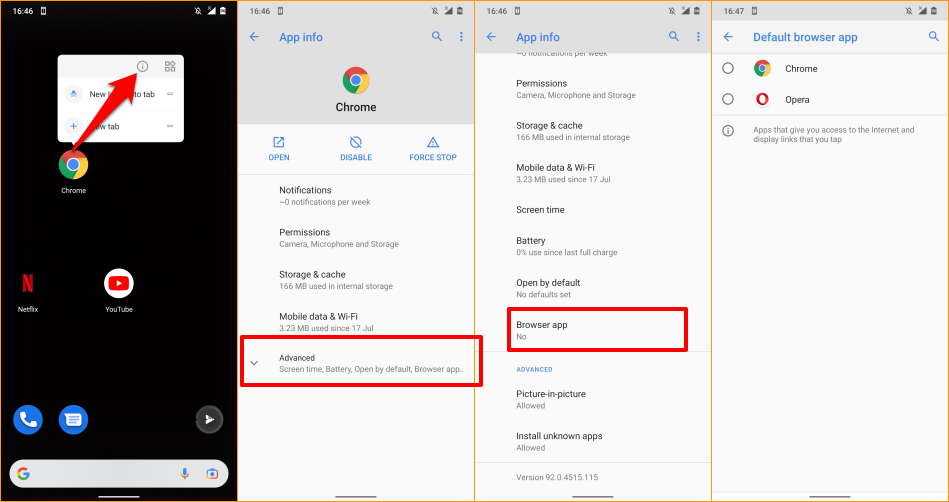
If you are experiencing issues accessing your email through a web browser, try switching to a different browser or device. Compatibility issues or temporary browser glitches can sometimes affect email functionality.
Use a modern and up-to-date browser for optimal performance, and clear your browser cache and cookies regularly to prevent any conflicts or performance issues.
Check for email service updates
Email service providers regularly update their platforms, which can occasionally introduce changes or impact functionality. Stay informed about any recent updates or announcements from your email service provider.
Check their official documentation, release notes, or user community forums to understand any new features, settings, or system requirements that may affect your email experience.
Try logging out and logging back in
Logging out of your email account and then logging back in can refresh your session and address temporary glitches. This simple step can help resolve minor technical hiccups and re-establish a stable connection. Before logging out, ensure that you save any unsaved drafts or important emails to prevent data loss.
Conclusion
Effective troubleshooting is essential for resolving email connectivity and configuration issues. By following this guide, you can diagnose and resolve common problems that may arise with your email account. From checking your internet connection and exploring folders to reviewing advanced settings and testing different devices, these detailed troubleshooting steps will help you maintain uninterrupted email access and ensure a seamless communication experience.
Remember to be patient and meticulous when troubleshooting email-related issues, and don’t hesitate to reach out to your email service provider’s support team for further assistance if needed. By proactively addressing email issues, you can enhance your productivity and ensure a reliable email communication experience.